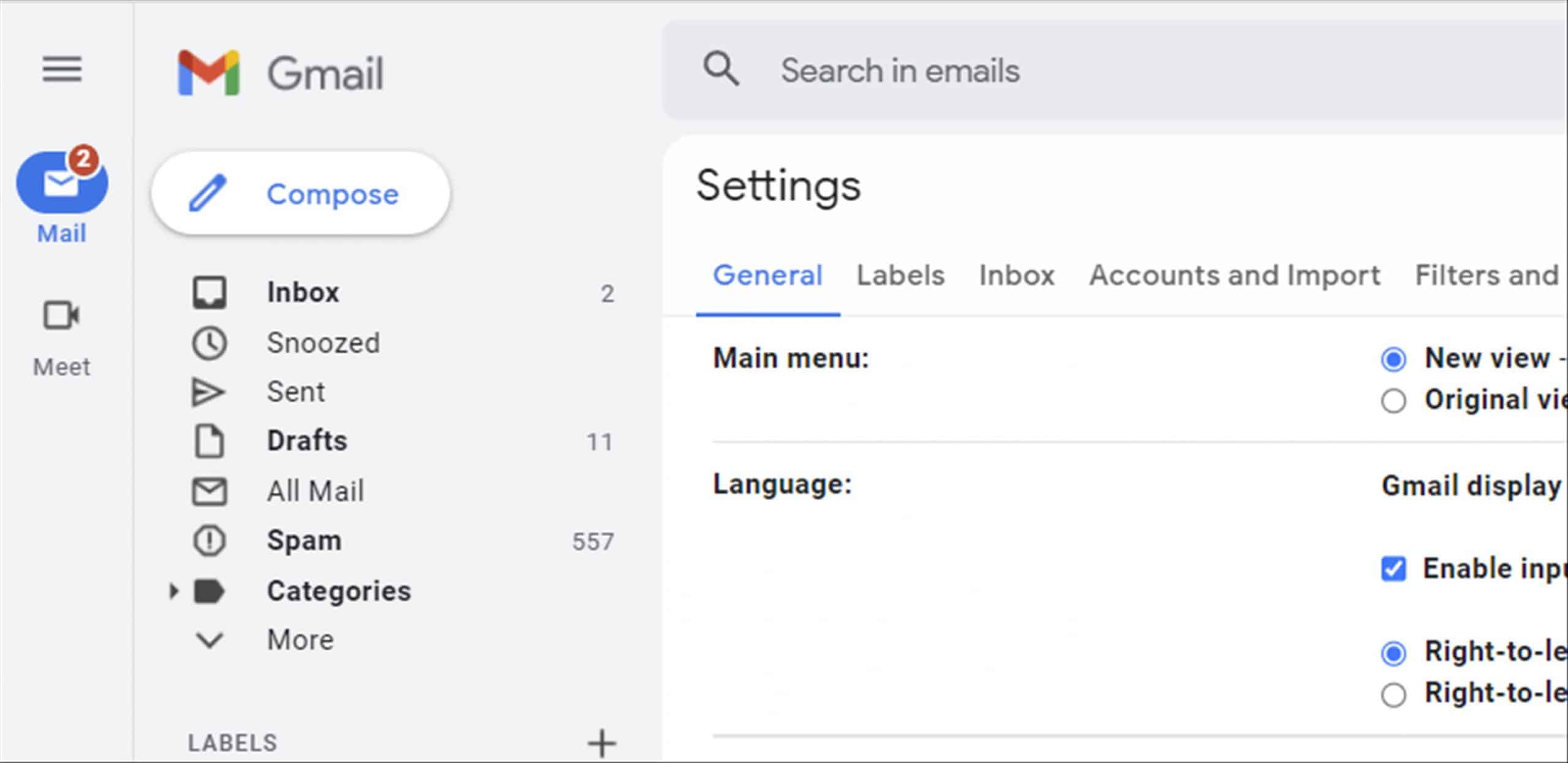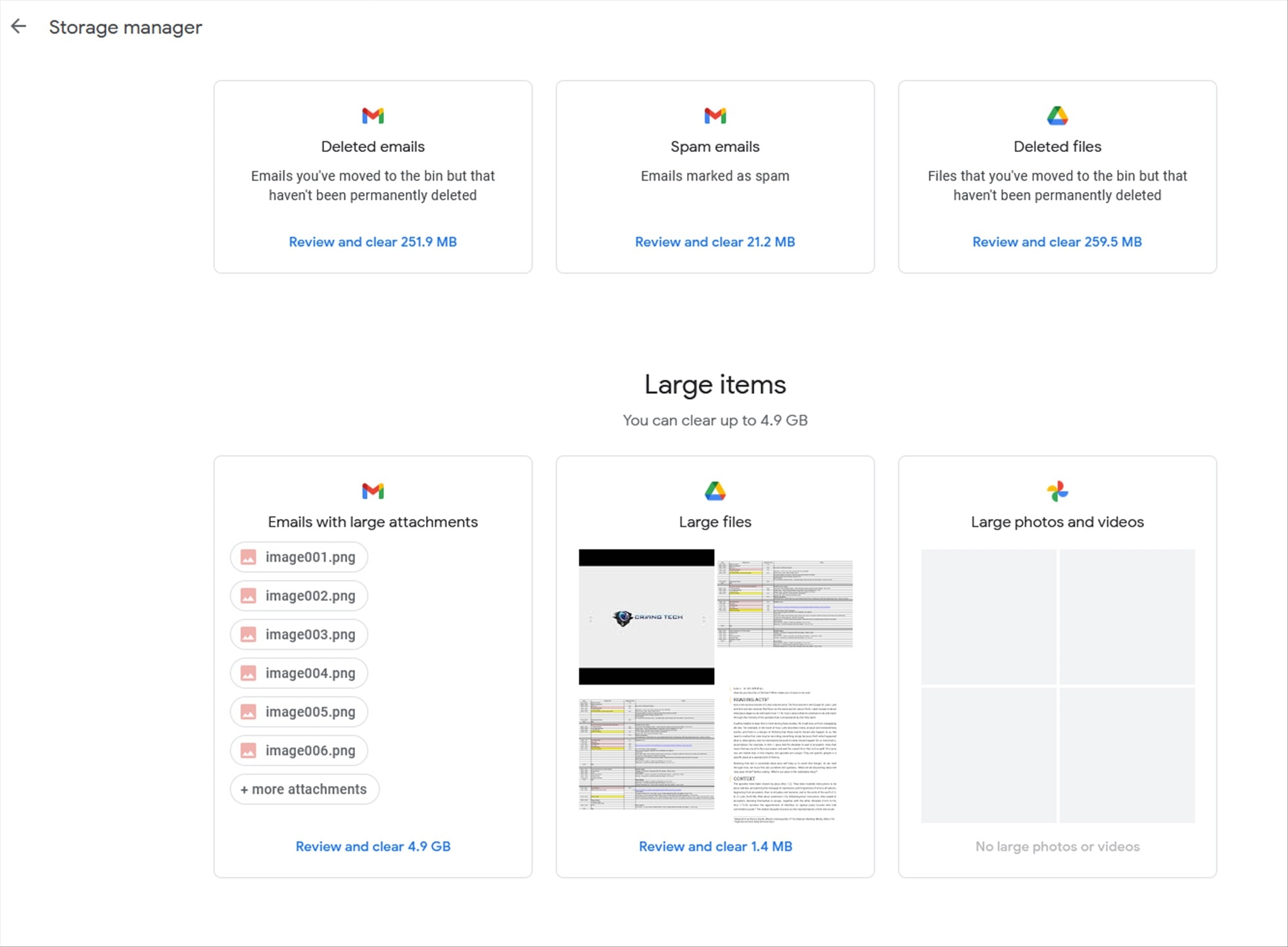

Google recently announced that Gmail would be discontinuing its ability to fetch emails from third-party email servers using POP, with the feature scheduled to disappear completely in January 2027. This was rather inconvenient for me because I’ve been using Gmail to manage emails from my Craving Tech domain for years (and I know a lot of people do too). With Google phasing out this functionality, I had to find another solution. One workaround was to forward all incoming emails from my Craving Tech email address to Gmail (which is what I’ve been doing for some time).
While this worked, it wasn’t exactly a clean solution because the original emails were still being kept in my domain’s mailbox, leaving me with copies of the same emails in different places. I wanted something more straightforward where I could manage all my email accounts without these unnecessary workarounds.
Naturally, I started looking for a dedicated desktop email client again. Microsoft Outlook and Mozilla Thunderbird were obvious candidates, but having used them before, I wasn’t particularly excited about returning to either. Then I remembered Mailbird, an email client I’d come across in the past (and wrote about back in 2013), and decided to give its latest version, Mailbird Next, a go. I remember liking the original Mailbird back then because of its modern interface and its intuitiveness.
And after using the latest version for a while, I can see why Mailbird remains an attractive alternative to traditional email clients.
Mailbird Next Review – What’s New?
Mailbird Next is the latest generation of Mailbird’s desktop email client, officially launched in October 2026. Unlike a regular software update, Mailbird Next has been rebuilt on a shared codebase for Windows and macOS, with a focus on offering a cleaner interface, easier email management and productivity features that make everyday communication less troublesome.
It supports popular email services such as Gmail, Outlook, Microsoft 365, Yahoo and iCloud, along with other providers that support IMAP. This means you can connect a custom domain email address, like my Craving Tech email account, without having to forward everything to Gmail first.
For someone who regularly deals with emails from brands, PR agencies, readers, friends, and other contacts, having everything accessible from one application is certainly appealing and intuitive.
Mailbird Next also offers a Unified Inbox, email snoozing, Undo Send, scheduled sending, email tracking, reusable snippets, advanced search, filters and integration with various third-party applications.
Not every feature is available in the free version, though. Mailbird Next offers a free plan supporting one email account, while the Premium version unlocks multiple accounts and additional productivity features. There is also a seven-day Premium trial for those who want to explore everything before committing.
A Clean, Customisable Interface
One of the first things I liked about Mailbird Next was its interface. It’s clean, modern and doesn’t feel unnecessarily complicated. Compared to the more traditional interfaces found in some desktop email clients, Mailbird Next feels refreshing. And don’t talk to me about Gmail’s old, never-changed interface.
The interface is also customisable so you aren’t stuck with a single layout that the developer thinks everyone should use. There are various ways to adjust how Mailbird Next looks and behaves, including the overall layout, message density and how email conversations are displayed. Personally, I prefer a more compact and minimalist layout where I can see as much information as possible without unnecessary spacing taking over the screen. Thankfully, Mailbird Next makes this possible.


You can also customise where the email reading pane appears and how conversations are presented. Depending on your preference and screen size, this flexibility can make a noticeable difference to how comfortably you work through your inbox.
The commonly used email actions are also readily accessible. Reply, Reply All, Forward and other shortcuts are available without having to dig through multiple menus.

There is also a Dark Mode for those who prefer a darker interface, although I’ve noticed that it can behave a little strangely at times. It’s nothing particularly serious, and hopefully something that can be polished through future updates.
Overall, I like the direction Mailbird has taken with its interface. It strikes a good balance between offering useful functionality and keeping the experience relatively uncluttered.
Unified Inbox Makes Managing Multiple Accounts Easier
The Unified Inbox is easily one of Mailbird Next’s most useful features, especially if you have several email accounts to manage. I have quite a few email addresses, although there are really only two main ones that I regularly use at the moment. Having all incoming emails appear together in one unified view means I don’t need to keep switching between accounts just to see what’s new. Again, what I usually do is to forward all emails from other domains that I have to Gmail, making it “centralised”. But it’s getting harder to manage when you want to reply using that domain address or trying to manage the emails from various accounts.
Mailbird’s Unified Inbox is particularly helpful when managing both personal and Craving Tech emails. Rather than having to open different browser tabs or rely on Gmail fetching messages from another server, I can connect the accounts directly to Mailbird Next and manage everything from the same application. Of course, there are times when I want to focus on just one particular email account. Mailbird Next handles this nicely as well, allowing me to quickly switch from the Unified Inbox to an individual account.

Sending emails works flawlessly in my experience, and Mailbird Next makes it easy to manage replies without constantly thinking about which mailbox I’m currently viewing.
You can also search for emails across multiple accounts. Sometimes I remember receiving an email about a particular product, event or conversation, but can’t remember which email address it was sent to. Instead of searching through several inboxes individually, I can search across them from one place.
Snooze and Undo Send – Two Features I Can’t Live Without
One of the main reasons I’ve stuck with Gmail for so long is its productivity features, particularly Snooze and Undo Send. These might not sound particularly exciting compared to some of the newer AI-powered email features being promoted nowadays, but they are the cores of my everyday workflow.
Take Snooze, for example. I use it a lot. There are plenty of situations where I receive an email that doesn’t require immediate attention but needs to be revisited later. Perhaps it’s something I need to follow up on, a product review discussion that can wait, a bill that is not due until another week, or simply an email that I don’t want cluttering my inbox until I’m ready to deal with it.
With Gmail, I could snooze the email until a specific date or time, and it would disappear from my inbox temporarily before returning when the time came. Mailbird Next offers this functionality built in, which is great. I don’t have to hunt for an extension or rely on a separate reminder application just to deal with emails later.
The other feature is Undo Send. We’ve probably all experienced that moment when we click Send and immediately realise something is wrong. Perhaps you’ve forgotten to attach a file, included the wrong information, or simply noticed a typo that should have been corrected. Undo Send gives you a short window to cancel the outgoing message before it’s actually delivered. Mailbird Next has this feature built in, with a configurable delay of between 5 and 30 seconds.
Snippets – A Small Feature That Saves Plenty of Time
Another Mailbird Next handy feature is Snippets (or Gmail’s Template). Snippets allow you to save frequently used pieces of text and quickly insert them into an email whenever you need them. Think of them as reusable text presets that save you from typing the same thing over and over again. And for my work with Craving Tech, they’re incredibly handy.
For example, I regularly need to provide my home address to brands or PR agencies that are sending review units. Rather than typing my full address every single time, I can simply save it as a snippet and insert it when needed. The same applies to standard responses for guest post enquiries, media kit requests or other frequently asked questions. These are emails that often require more or less the same information, so being able to load a prepared response makes replying significantly quicker.
Mailbird Next’s Snippets feature supports reusable text and more complete email templates, making it useful for both short pieces of information and longer responses.
Integrations With Popular Apps

Mailbird Next also supports integration with various third-party applications, including Slack, Trello, WhatsApp, Google Calendar, Dropbox and many others. The idea is to bring some of your commonly used productivity and communication tools into the same interface as your email client, reducing the need to constantly switch between applications or browser windows.
You can access these applications through Mailbird’s interface while keeping your email inbox close by.
It’s a nice feature to have, particularly if you regularly use several productivity tools throughout the day. However, it’s worth understanding what these integrations actually offer. For the most part, they’re essentially web applications displayed within Mailbird Next, much like having those services open in separate browser tabs. This means you shouldn’t expect particularly deep integration where, for example, everything in Trello or Slack automatically interacts with your emails in a more sophisticated way.
You still get the convenience of accessing these services from one application, but I wouldn’t consider this a major reason to choose Mailbird Next over another email client. It’s useful, certainly, but more of a bonus than a standout feature. It may also make your Mailbird Next more bloated but I honestly haven’t compared the resource it’s using vs if I have the service opened in a browser’s tab.
You can also connect to Claude, ChatGPT, or Cursor, through MCP which is really nice if you are utilising AI to manage or automate your email activities.
A Few Things I’d Like to See Improved
While I’ve enjoyed using Mailbird Next, there are a few things that could be better. For example, I’d really like to see is proper account and settings synchronisation between devices. At the moment, whenever I install Mailbird Next on another computer, I find myself having to configure my email accounts individually again. With multiple accounts to manage, this gets rather tedious, especially considering that I’ve already gone through the setup process on another machine.
I would love to be able to sign in to my Mailbird account and have my existing email account configurations and preferences automatically synchronised across my devices. That would make moving between computers much easier and give Mailbird Next a more seamless experience. Again, this is something that the team might be adding soon so double check if they have when you are reading this review.
As mentioned earlier, Dark Mode could also use some refinement. While I appreciate having the option, I’ve encountered some slightly quirky behaviour that makes it feel less polished than the regular interface at times.
None of these issues is necessarily a dealbreaker, but they’re areas where I think Mailbird Next could improve. Considering that the application is actively receiving updates, I’m hopeful that some of these annoyances will be addressed over time. It’s also one of the things I like about Mailbird compared to Gmail, say. Being an independent software company, we get a lot more frequent updates so expect Mailbird Next to be improved constantly – something you probably won’t get from a mail client coming from the big companies (like Outlook, Thunderbird, or Gmail).
Mailbird Next Pricing
Mailbird Next is available as a free download for Windows and macOS, with the free version supporting one email account. For those who need multiple accounts, the Unified Inbox and advanced productivity features, Mailbird Premium is the more relevant option.
At the time of writing, Mailbird’s Australian pricing page lists Premium at a promotional A$4.13 per month, billed annually. There’s also a Premium Pay Once option advertised at A$149.75.
One thing worth noting is that the Pay Once licence doesn’t automatically include all future major versions. Mailbird offers a separate Lifetime Updates add-on, currently advertised at A$99, for users who want continued access to future major releases.
These prices are promotional and may change, so it’s worth checking the official Mailbird website before purchasing.
For my use case, where managing multiple email accounts is essential, the free plan would be too limiting. The Premium version makes much more sense, although whether it’s worth paying for will depend on how heavily you use the additional features.
Mailbird Next Review Conclusion

I’ve been relying on Gmail for many years, mainly because it handles multiple email accounts reasonably well and includes productivity features that have become an essential part of how I manage my inbox. However, Google’s decision to discontinue fetching emails from third-party servers has forced me to reconsider that setup. And while forwarding everything to Gmail is a possible workaround, it doesn’t really solve my desire to manage email accounts more cleanly.
Mailbird Next has turned out to be a really compelling alternative.
I really like its clean, modern interface and the amount of customisation available. The Unified Inbox works well for managing multiple email accounts, and being able to search across them makes finding older conversations much easier. More importantly, Mailbird Next includes the features I’ve come to rely on in Gmail, particularly Snooze and Undo Send. The Snippets feature is another favourite of mine, helping me save time when responding to the many repetitive emails I receive through Craving Tech.
Mailbird Next offers a pleasant, practical email management experience without the unnecessary complexity I sometimes associate with more traditional desktop email clients. And it will just keep on having better and better updates as the team keeps improving the software.
If you’re looking for a clean, customisable desktop email client to replace Outlook, Thunderbird or even Gmail’s browser-based experience, Mailbird Next is definitely it. It’s powerful, elegant, modern, and simple all at the same time – and it won’t stop there.
Disclosure: Mailbird Next review licence was supplied for reviewing
Mailbird Next Review
Overall
Summary
Mailbird Next makes managing multiple email accounts a breeze with its clean, customisable interface, Unified Inbox, and handy productivity features like Snooze, Undo Send, and Snippets.
Pros
- Clean, modern and customisable interface
- Unified Inbox makes managing multiple email accounts easier
- Useful built-in Snooze and Undo Send features
- Snippets significantly reduce repetitive typing
- Convenient cross-account email search
- Easy access to commonly used email actions
- Can connect to your favourite AI like Claude, ChatGPT, or Cursor, through MCP
Cons
- No seamless account and settings synchronisation between devices in my experience
- Dark Mode could use more polish
- Third-party app integrations are mostly embedded web applications