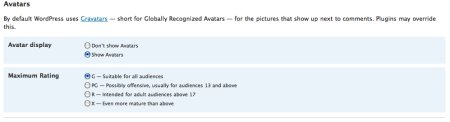
So you have heard that WordPress 2.5 has a built-in Gravatar feature? So you have tried enabling it on the Administration Settings (Settings->Discussion->Show Avatars) but no pictures are being displayed at all?
I was on the same boat like you. Do you know that you still have to insert a code snippet on your comments.php (theme file)? And..No, this is not an April Fools’ Day post ![]()
How to enable the WordPress 2.5 Built-in Gravatar
First of all, make sure that the feature is enabled on the Administration-Settings-Discussion:
![]()
Then, go to your Design->Theme Editor and then open/edit your Comments (comments.php) file.
Find this line somewhere on the middle of the codes:
…<?php if ( $comment->comment_author_email == get_the_author_email() ) echo ‘mycomment’; else echo $oddcomment; ?>” id=”comment-<?php comment_ID() ?>”>…
…..
…..<?php comment_text() ?></div>
Those are the lines that print the commenting text on the Comments section of your blog. You then have to insert these Gravatar codes around them, like this:
<!– GRAVATAR CODE –>
<table cellpadding=”0″ cellspacing=”1″>
<tr>
<td valign=”top”>
<?php echo get_avatar( $comment, $size = ‘40′ ); ?>
</td>
<td valign=”top”>
……………
……………
<?php if ( $comment->comment_author_email == get_the_author_email() ) echo ‘authorcomment’; else echo ‘thecomment’ ?>” id=”comment-<?php comment_ID() ?>”>
…………
…………<div class=”comment-body”><?php comment_text() ?></div>
</td>
</tr>
</table>
<!– END OF GRAVATAR CODE –>
So basically put the “wrapping” codes around the codes that start with something + “if($comment->comment_author_email == get_the_author_email()…..” and something + “<?php comment_text()….”
The end result will be like:
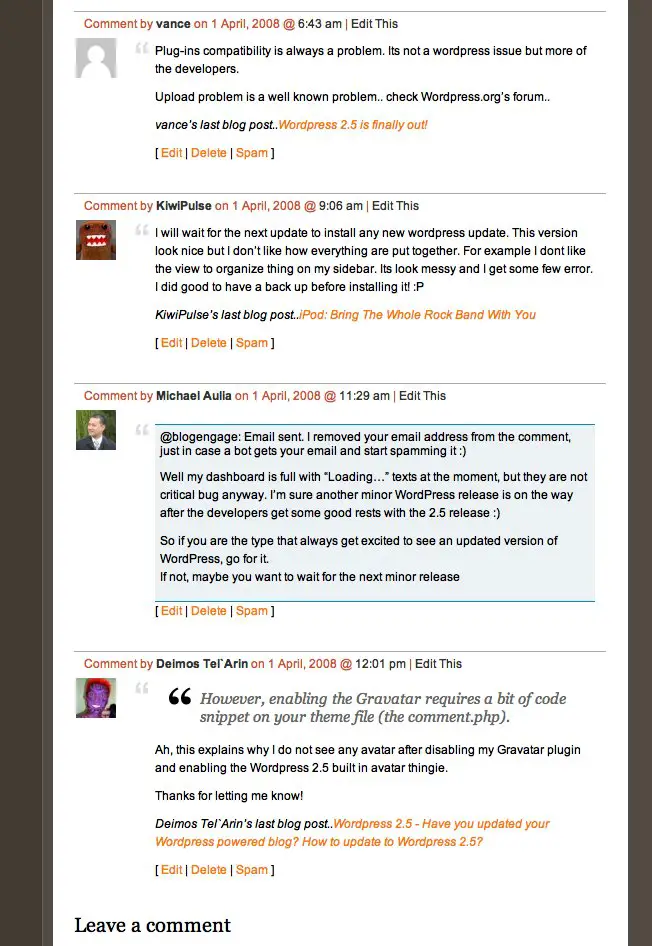
You can change the avatar size by changing the number 40 in the line
<?php echo get_avatar( $comment, $size = ‘40‘ ); ?> to 60,90,120, etc. Try changing the numbers until you’re satisfied with it.
If you know a bit about HTML, then you can always change the codes above to a format that you like. I’m using table to make it neater and make the avatar size to be quite small.
You can always read the official manual to find out more about what you can do with the feature.
Screenshots: (Do you know that by typing “SquareBracket”gallery*SquareBracket* on your post, all of the uploaded images & media on the post will appear automatically? Another neat feature of WordPress 2.5!)
- Gravatar Settings on the Administration
- Gravatar in Comments
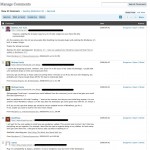
- Gravatar on the Comments Administration


{ 1 trackback }
{ 15 comments… read them below or add one }
It’s interesting that you pass $comment and not the actual email of the comment (that’s what I tried yesterday and it failed). Thanks for this! I’ll have to try it out! I simply re-enabled the gravatar wp plugin and used that method.
Douglas Karr’s last blog post..Saturday, April 26th: BlogIN – A Blogging Unconference
Thanks for the info! I just upgraded to WP 2.5 and am still learning the ropes. This is a neat feature, which I had no clue about till now. Thanks again.
mike’s last blog post..20 Completely Impractical Ways to Get Out of Debt
Hi Douglas,
I’ve actually got the code from the WordPress forum (forgot where it was now).. but someone put the $email which didn’t work properly.
Another person was suggesting the $comment.
@mike: the top new features that you want to look at are probably the Gravatar and the Gallery (media upload + display). those are the cool ones!
Sounds like much work. -_-
A plugin is much easier and faster. O_O
Deimos Tel`Arin’s last blog post..???? – Some words are hard to say
I was in the same situation – I enabled them but they weren’t showing. Thanks, but I think I’ll wait for a plugin, I’m not in a hurry.
Btw, I can’t seem to figure out how to use normal avatars in my blog. ?
wPlop’s last blog post..Why some people hate Vista
Ha, its fortunate that my current theme has a gravatar embedded already, hehe.
I’ll know where to ask a question when I turn to WP!:)
1 Million in 365 Days’s last blog post..Pimp Your Blog – Do You Need a Change?
This one works on my blog:
it works great
thanks
I tested on my Local Server and I still doesn’t work
can you help me?
Hi Jauhari,
I’ve sent you an email to try to help you further
STUMBLED!
Funny, I was about to go to the Wordpress forums to get support for this when I found you on Blog Engage.
Thanks for posting.
Geoservs last blog post..Google Pagerank Update
Never believe in a coincidence! Does it work for you? Feel free to contact me if it doesn’t!
PS: and thanks for the stumble
Hmm, my resizing won’t work. I would like it smaller, but when I change that value it doesn’t change. Any idea what I might be doing wrong?
(I’d also like it to be floating right, but I can’t figure that one out either. It’s different from the code I have on my other blog for the gravatars plugin…)
Hm. It should be changing.
- What size did you put? (try 16 or 24)
- Did you have any caching plug-in on your blog?
- Did you install the SezWho commenting code? If you do, your blog will actually use the SezWho Avatar instead of your WordPress’
As for the floating right, it’s related to CSS. I’m not an expert in CSS, so I can’t really help you.. although I at least know how to edit one
Still not changing. Drat. I was trying 20, but I tried both 16 and 24 and no change. No to the other two questions though, so I don’t think it’s that.
I am extra frustrated because it is exactly the way I want it in the wordpress.com version of this theme and now I have to try and figure out how they did that.
Thanks for the help though! I appreciate it!