Fix Windows Vista/7 Sleep mode from waking up by itself
So you love the Windows Vista (and Windows 7) sleep mode but somehow your machine wakes up from the sleep by itself? It is an annoying problem and usually happens the first time you try the Sleep feature on Windows Vista/Windows 7.
Here are some details on what you should check to fix Windows 7 sleep from waking up automatically.
Prevent your Network Card to wake your Windows Vista/7 up from its sleep
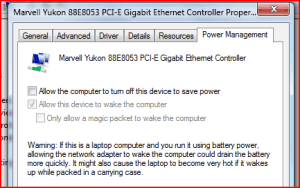
Check your network card properties through the device manager and disable the “Allow this devide to wake the computer” feature.
- Right click on your “My Computer” then select Properties.
- Click Device Manager on the left side of the Properties window.
- Check your Network card on the Network Adapters (Click on the + sign to expand).
- Right click on your network card and select properties.
- Go to the Power Management tab and untick the option there to prevent your network card from ever waking up your Windows.

Find out what wakes up your Windows 7/Vista from its sleep
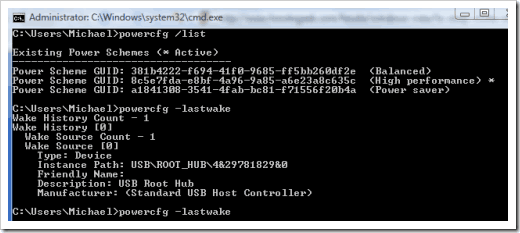
To find out what event/device woke up your Windows from its sleep state, go to command prompt (type cmd on the Run/Search box and press ENTER), then type this:
powercfg – lastwake

To get the most detailed info (and probably easiest) on the device that wakes your Windows up during the sleep, type:
powercfg –devicequery wake_armed

There! You’ll find the culprit
I clicked my mouse to wake my Windows up intentionally so that’s why you see an HID compliant mouse on the screenshot above. Yours might be different.
Hope this helps!
If it still doesn’t work:
- Check out your Power Management Options on your Control Panel (Start, Control Panel, Power Settings, Change plan settings, Change advanced power settings).
-> “Multimedia settings” option, “When sharing media.” ->”Allow the computer to sleep.
-> Check other options one by one while you’re at it.
|
|
|
To get the latest posts on this blog, subscribe via your favorite RSS feed reader (What is RSS?) or by entering your email address on the form below: |


Nice tip. Thanks for the info. WIll share this post with my friends who are using vista and windows 7.
I am now happy with Windows XP
Well, most people are still happy with Windows XP
im still happy with 3.5…. get with the program
yes, i’m still very very happy with my windows XP
Ah, finally my computer sleeps undisturbed.
Appears to have been my network card. I did kindof suspect it as the MSN window popped back up when it resumed from sleep.
Cool
Most of the time, the issue comes from the network card
Thanks that was anoying the hell out of me
Thanks, that really helped diagnose the problems I was having, didn’t know about the powercfg command-line
Thanks so much! Just went online and encountered this problem. The microsoft article said to click manage…did not work. Your solution is to click properties…now I have sleep. As a newby to the computer world, I will keep your website in mind for reference. If you ever need any help with a wood lathe…just drop a line.
Thanks
Glad that the post helped you out. Feel free to subscribe to this blog (through the feed button on the top)
thanks man, i looked at the powercfg and it says the network card did it.
so i turned it off and it should fix this for good
[...] imediat. Cat despre wake neasteptat verifica aici, poti sa verifice ce a determinat trezirea: Fix Windows Vista/7 Sleep mode from waking up by itself | Michael Aulia -Technology and Reviews __________________ Nu te teme de ziua de maine, Dumnezeu e deja [...]
The “-” hyphen syntax may not allow the command to be recognized when typing it in the Search/Run/Console.
Just exclude the “-” hyphen and the command will run fine:
powercfg lastwake
powercfg devicequery wake_armed
thanks a lot, that really helped. Mine was the network card. thanks again.
Actually, in my previous comment, I should have noted that you need to open the Windows Console to execute the powercfg commands.
To Start a new Command Prompt shell in Windows, just type CMD in the Windows Vista “Start Search” box or open the Windows “Run” dialog box in the Windows Start Menu and type CMD.
Then the Console will open and you can type your powercfg commands to isolate what is causing the system to wake from Sleep/Hybernation mode:
powercfg lastwake
powercfg devicequery wake_armed
In my situation, I had already “unchecked” the box in the Power Management tab for Network devices so I knew that these devices were not waking up my system. But something was waking up my system so I used Michael Aulia’s command line tech tips and finally got my notebook system to stay in sleep mode and it also now stays in hybernation mode, it was my keyboard/touchpad device that was waking up my system.
Thanks for the tech tips Michael.
Thank you for that!
I’ve been searching the internet the whole day to find out the problem, and then i ran into this, 10 minutes later and keyboard + mouse wake disabled, it finally goes into sleep mode.
Thanks again.
Thanks a lot..it really worked
I was tired with this sleep prob. in win 7.
you are a champion, this problem was driving me crazy
people listen
if your computer is old like a p4 then win xp is where u want to stay at. if you are running anything new that came with vista its time to leave that in the dark. again win 7 is not for older pc’s
win 7 = winxp + a hint of vista but alot more XP
I guess that’s your point of view.
I’m running Win 7 on a P3 laptop (an old Inspiron 8100) and it works just fine. No noticeable degredation in performance over the XP that was on it. Vista, however, I would not dare try to run on it. There are plenty of people on the web reporting that Win 7 is running great on older hardware.
[...] Fix Windows Vista/7 Sleep mode from waking up by itself [...]
[...] Since installing Windows 7 I haven’t been able to put my PC to sleep either in hybrid mode or hibernate. So I did a little digging and found some useful tips on INTERNET. [...]
Thank You its really works
My PC had been running 32 bit XP and the sleep worked perfectly. I just upgraded to 64 bit Win7 and it started waking itself from sleep after only a few seconds. It never seemed to go completely to sleep. The display shut off, the hard drives spun down and the power light started to blink, but the cooling fans continued to run.
I found that both my keyboard and mouse had wake-from-sleep enabled. I tried to turn one off at a time and it didn’t help. Turning both off did the trick. The mouse and keyboard are wireless and work from a Microsoft USB Dual Receiver Wireless base and use the Intelli[Type|Point] drivers installed automatically by windows update.
The network driver had wake-from-sleep and magic packet enabled too, but those settings doesn’t seem to cause this problem.
This problem was the only really annoying glitch that I had (ignoring the hassle of backing up and restoring all of my data.)
It was a pain, wasn’t it. I have a Microsoft Wireless Mouse but thankfully never encountered such problem like you had
I think I found the root cause to my keyboard/mouse wakeup problem. It turns out that the motherboard has a default jumper setting that doesn’t provide standby power to the USB ports. When system went into standby, the ports would power down and that was interpreted as a turn on signal. Moving the jumper to provide standby power seems to have fixed the problem (as well as allowing the keyboard and mouse to actually bring the machine out of sleep.)
Thanks a million, my PC would go into a kind of half sleep and I could not get it do anything except by a hard shutdown. Why would Microsoft enable those wake on network activity settings by default? Anyway you saved me. Thanks
Thank you so much!! Windows Media Center was waking my computer up every night at midnight to download tv guide data. Your article helped me figure this out. THANKS!!
[...] should give you a list of the potential culprits for the sleep problems. Read more e.g. from here: http://www.cravingtech.com/blog/fix-windows-vista7-sleep-mode-from-waking-up-by-itself.html Cancel [...]
Great post! Great tip on finding the last wake device. I’m surprised that the network card is set to wake on default.
Thanks, mine was the keyboard.
Had to remove the dashes in the commands too.