

Ever heard of these statements before?
- “My PC is getting slower!”
- “Took me ages to get to Windows”
- “It’s time to upgrade my computer because it’s too slow to do anything”
- “I have too many files in my computer that it slows my Windows down”
Do you know that most of the time, the statements above can be cured simply be reformatting your Windows? After a long period of time, Windows registries get cluttered, and more and more items are being loaded during the Windows start-up. Although reformatting and reinstalling everything from scratch work well, there are times where you just can’t afford to lose the time and energy. What you need is a good application to maintain and optimize your system for you.
System Mechanic 9.5 is one of the available tools on the net for this. Let’s find out how it performs in this review.
System Mechanic 9.5 System Analysis and Repair

Upon starting System Mechanic 9.5, you’ll be presented with the “Dashboard” where you can take a quick glance on your system status, check your subscription status, hints and tips for the day, and access to System Mechanic 9.5 modules.
When you run System Mechanic 9.5 for the first time, you might want to focus on one thing: Let it do a thorough (not the quick) scan on your system. It will take a while but the long wait is certainly worth it. You’ll be amazed by how many registry errors and other issues that it will find on your system.

I was surprised to find how System Mechanic 9.5 managed to find more registry problems and issues after I’ve been running TuneUp Utilities 2010 for a few weeks.

I was even more surprised that I noticed a major improvement on my system after I ran and did a repair using System Mechanic 9.5. It’s hard to explain here but my system felt much more responsive than before. Now I know how subjective this can be and how the statement of “It improved my system!” can be vague. But that was what’s happening, really. I’m not gonna promise that you’ll see the difference too because it depends on the state of your system before you run System Mechanic 9.5.
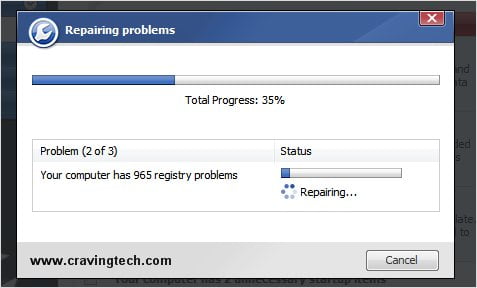
Now before you go happy and click on the Repair All button, you might want to take an extra step to check for the problems. Registry problems and System clutter clean-up are pretty safe to be taken care of by System Mechanic 9.5. The “unnecessary start-up items” is the one that you might want to have a look at because “unnecessary” for someone doesn’t mean the same for another. I normally looked at the suggestions manually before I gave the application a go ahead to remove the truly unnecessary items.
You can set System Mechanic 9.5 to never check and suggest a problem set or “Hide” it (say, the Removing unnecessary start-up items) but I’d love to see the application to be able to hide a specific item inside the problem set, in this case, a single start-up item reported as one of the 2 unnecessary start-up items on the screenshot above.
System Mechanic 9.5 ActiveCare
I’ve been talking a lot about the System analysis and repair/optimize above but there are so many other features that System Mechanic 9.5 offers. For example, the Active Care will perform a repair and optimization whenever you are away from your computer. You can choose selected tasks to be performed such as:
- Automatically clean up excessive system clutter
- Automatically repair hard drive errors
- Automatically repair registry problems
- Automatically backup your registry every 14 days
- and many more
By default, they are disabled (which is a good thing) but you can enable what you think will work best for your system.
System Mechanic 9.5 ToolBox
System Mechanic 9.5 also has a range of other system tools available for you such as:
- Internet Speed Optimizer
- A Hard drive defragmenter
- Scanning and fixing any security flaws detected on your System (security zone settings on your browser, whether you turn windows update on, etc)
- Clearing private data (browsing history, chat logs, etc)
- Managing Windows start-up processes (rather than using the Registry Editor the manual way)
- Searching for duplicate files (on its default scan, it found many duplicates of Windows system files such as the DLL files. It’s best to use the Custom scan where you can define the type of files that you want it to run on, such as mp3 files, jpg files, etc).
System Mechanic 9.5 Review Conclusion
 System Mechanic 9.5 offers an automated tool to scan, repair, and optimize your system. There will be times when Windows gets sluggish after some period of time, things get less responsive, and Windows start-up takes forever. System Mechanic 9.5 scans and repairs these problems for you so you don’t have to do a complete reformat of your system.
In my personal experience when I started to use System Mechanic 9.5, my computer got a boost of responsiveness. Not so much after using the application for a few weeks, but I could tell definitely that my system was on the verge of extinction before System Mechanic 9.5 stepped in. So if you think that you have enough with your Windows system, try downloading System Mechanic 9.5 trial first and test it for yourself.
System Mechanic 9.5 can also be set to automatically maintain and optimize your system when you are idle. This is a great feature because you can basically set it up and forget about it, knowing that your system will always be maintained and optimized by System Mechanic 9.5.
EXCLUSIVE OFFER FOR CRAVINGTECH READERS!
You are eligible for a 30% OFF if you buy System Mechanic 9.5 and use CRAVINGTECH as the coupon code now! Don’t miss this chance!






Comments are closed.