Razer Megasoma Review

Razer Megasoma is a hybrid of a hard and a soft mouse mat; If you love the softness of a soft mat but want to have the speed of a hard mat, Razer Megasoma delivers (this is debatable and I guess more like a personal preference). Razer Megasoma sits somewhere in between, combining the best [...]

Blogging with Windows Live Writer (Wave 3)


by Michael Aulia on 23 September, 2008

in Blogging


Do you use Windows Live Writer to blog?

View Results

Loading ... Loading ...

windowsLive When Windows Live Wave 3 was launched (which includes an update to Windows Live Writer), I thought I’ll give it a try just to see why some bloggers actually blog using Windows Live Writer.

When I write a blog post, I usually use the WordPress built-in post editor tool online. “Why I should bother use another text editor if the online one already does the job well? ” or so I thought. Well, my thought was wrong.

After installing Windows Live Writer Wave 3 and set it up to link to this blog, I was amazed. It was like love at first sight. Windows Live Writer automatically downloads my blog’s theme CSS and uses it to display the font and paragraph styles on the application. It’s like writing a post live on your blog (minus the bits and pieces). You can also use the Preview to view what your post is going to look like if you publish it.

Windows Live Writer is easy to use and pleasing to use. I’ve fallen in love with it after I wrote up my first post entirely from Windows Live Writer. If you are currently writing your post through your blogging platform online tool, consider trying to write a post using Windows Live Writer!
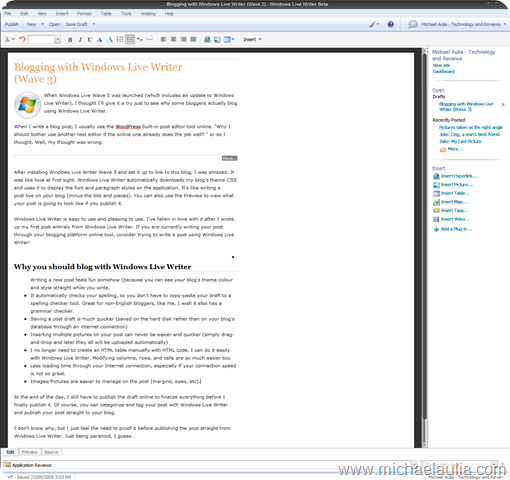
Windows Live Writer Wave 3

Why you should blog with Windows Live Writer

  • Writing a new post feels fun somehow (because you can see your blog’s theme colour and style straight while you write.
  • It automatically checks your spelling, so you don’t have to copy-paste your draft to a spelling checker tool. Great for non-English bloggers, like me. I wish it also has a grammar checker.
  • Saving a post draft is much quicker (saved on the hard disk rather than on your blog’s database through an internet connection)
  • Inserting multiple pictures on your post can never be easier and quicker (simply drag-and-drop and later they all will be uploaded automatically)
  • I no longer need to create an HTML table manually with HTML code. I can do it easily with Windows Live Writer. Modifying columns, rows, and cells are so much easier too.
  • Less loading time through your Internet connection, especially if your connection speed is not so great.
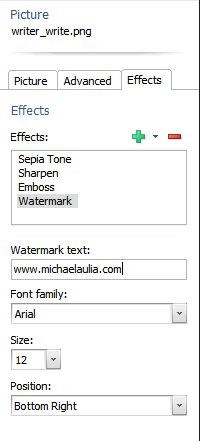
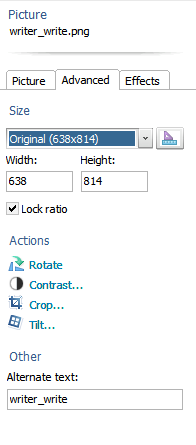
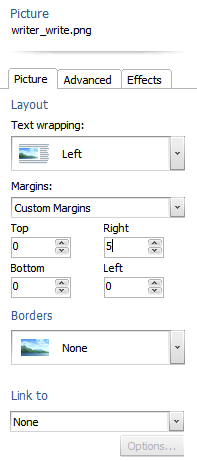
  • Images/Pictures are easier to manage on the post (margins, sizes, etc). You can also add image effects and even watermark your image! (see the above screenshot with the watermark)
    picture Blogging with Windows Live Writer (Wave 3) picture3 Blogging with Windows Live Writer (Wave 3) picture2 Blogging with Windows Live Writer (Wave 3)

At the end of the day, I still have to publish the draft online to finalize everything before I finally publish it. Of course, you can categorize and tag your post with Windows Live Writer and publish your post straight to your blog.

I don’t know why, but I just feel the need to proof it before publishing the post straight from Windows Live Writer. Just being paranoid, I guess…


Bookmark and Share


Subscribe Now

If you enjoyed this post, feel free to subscribe to be notified of new posts at Craving Tech!

{ 8 comments… read them below or add one }

Francis 24 September, 2008 at 3:58 am

Why do you need to publish the draft online to edit it? Cant you do it in LiveWriter? I might be missing something essential since I just post it and go.

Reply to this comment

Alan 24 September, 2008 at 6:00 am

I’ve been using it for quite a long time and like it. There are also a lot of plug ins also, but I haven’t tried any of them yet.

Alans last blog post..Time for a New Gay Village ?

Reply to this comment

Margaret 24 September, 2008 at 8:47 am

I’ve used Live Writer for awhile also — I especially like the various places you can pull in images from — Flickr, your hard drive, another URL. That’s very versatile and the effects are pretty cool, too.

The biggest drawback is that I also use Zemanta on my blog posts. Zemanta helps find relevant tags in your post, links to usually Wikipedia on keywords in your post and also articles on the web that are relevant. All of these things help with SEO, but you have to do them manually after you publish your post from Windows Live. Now if there were a Zemanta plug in for Windows Live, my life would be complete!

I do love this program.

ê¿ê

Reply to this comment

Eva White 24 September, 2008 at 6:30 pm

I’m seeing praises for it on the third blog now counting yours. I guess its time for me to give it a try.

Reply to this comment

Michael Aulia 24 September, 2008 at 11:08 pm

@Francis: Well I have a Platinum SEO plug-in installed, so I need to add extra tags, keywords, and description to the post. Besides, I’m just being paranoid to double check how it’s going to look like

@Alan: I tried a couple of them and quickly uninstalled it lol I guess they need to create better plug-ins :)

@Margaret: Never heard of Zemanta before. I might want to look at it later. More search engine visitors are always welcomed.

@Eva: Trying it doesn’t hurt. Worst to worst is that you just uninstall it again :)

Reply to this comment

Nihar 25 September, 2008 at 5:23 pm

I haven’t used it before. I will try in the free time…

Reply to this comment

Derek Cosslett 7 October, 2008 at 10:22 pm

I use Live Writer and find it a great tool for writing posts, there is now a plugin for Zemanta which make it even better.

Reply to this comment

Michael Aulia 9 October, 2008 at 11:18 pm

I’ve been using Windows Live Writer to write now. Much quicker, especially when saving drafts and inserting images :)

Zemanta: “Zemanta is a technology used by bloggers that inserts automatic links, adds relevant photos, adds links to related articles, and automatically tags your posts.”
Hmm..interesting, but don’t think I’m gonna use it, though

Reply to this comment

Leave a Comment

You can use these HTML tags and attributes: <a href="" title=""> <abbr title=""> <acronym title=""> <b> <blockquote cite=""> <cite> <code> <del datetime=""> <em> <i> <q cite=""> <strike> <strong>

CommentLuv Enabled

Previous post:

Next post:


ss_blog_claim=90a03beb48f2cae080e36591e278f2e0