
 This is my 3rd post on the post series: how to reduce WordPress CPU usage. Read the complete series on my Blogging Guide series page.
A high CPU usage can be caused by the number of calls that WordPress has to make to the database. On a WordPress blog, almost all data are taken from the database. Data such as comments, posts, the URL of the blog, the location of the CSS files, and other information needed for your plug-ins.
Some of these database calls are unavoidable but some can be avoided by simply using the WP-SuperCache plug-in. However, database calls will still be needed to generate the static file after a cache is being cleared.
Here is how to check how many database queries your theme/blog is making.
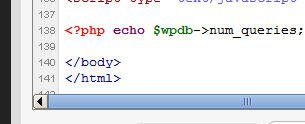
You can insert this snippet of code on your Footer.php file (or anywhere) to make it display the number of queries:
<?php echo $wpdb->num_queries; ?> <?php _e(‘queries’); ?>.
As an example, I got these results from using different themes:
- Vigilance Theme: 25 queries.
- Arthemia Premium (the one that I’m using now): 58 queries.
- Original Arthemia Premium (unmodified, from the demo site): 101 queries.
Vigilance theme is a light theme that I used when I was ordered to reduce my CPU usage on my old web hosting, LunarPages. As you can see, it has the smallest number of queries made to the database.
This blog’s current theme, Arthemia Premium, makes lots of database calls (for the featured post, random posts, carousel items, etc). I already made some adjustments to reduce the number of dynamic items needed to be displayed. The result is quite amazing: database queries were cut into half.
So how can you reduce the number of database queries apart from installing WP-SuperCache?
- Reduce the number of plug-ins (Each plug-in usually stores information in the database. Some plug-ins make more calls than the others.
- If you have to use a plug-in, try reducing the number of information it needs to store whenever possible. For example, if you can turn off logging, then turn it off. Most of the time you won’t need it unless when things go wrong. For example, a spam plug-in usually has an option whether or not to show the number of spam comments it has caught in the past. Turn this off! Do you know that it will make a single database query to grab the number?
- Hardcode obvious information such as the URL of your blog (rather than grabbing it from the database / your administration settings).

Find out the absolute URL by viewing the page source and replace it on your theme editor. DON’T hardcode the title and let WordPress generates the title dynamically for SEO. - Disable post revisions with Disable Revisions plug-in. When you are writing a post, it will save a new entry everytime you save the draft onto the database. If you don’t need it, switch if off!
- Reduce the number of items and widgets on your main page and/or sidebar. I removed the random posts section from my Arthemia Premium theme because it makes “expensive” calls to the database.
Feel free to add more tips on the comments section!




Comments are closed.