
Your Windows freezes every now and then? Everything feels sluggish and slow? Windows startup takes too long or feels like forever? Pop-ups happening in your windows (Casino ads, etc)? Most likely you are either infected with a virus/trojan or spywares/adwares are active in your Windows session. There are bunch of antivirus and anti-spyware software out there, but there is an “easy” solution that you should try first by tweaking your windows registry before downloading and installing any software. BEFORE you do anything else, RESTART your system!! Most problems in Windows can be solved by simply just restarting the system (honestly!). If after restarting, you feel the same thing, then continue to read :)
When you feel that your Windows is slowing down, feels unresponsive, sluggish or takes forever to do anything
Most the case is that, there is a process that takes all of your CPU power, therefore whatever you are doing will take some considerable amount of time. This is usually famous with terms like “My CPU Usage is 99%!!” complaint.
Let’s try to detect whether there is a process that greedily taking all of your CPU. First of all, press the CTRL, ALT and DELETE button on your keyboard at the same time to open up the windows task manager. This will list all currently running processes and applications, and will let you know how much memory/CPU they are using.
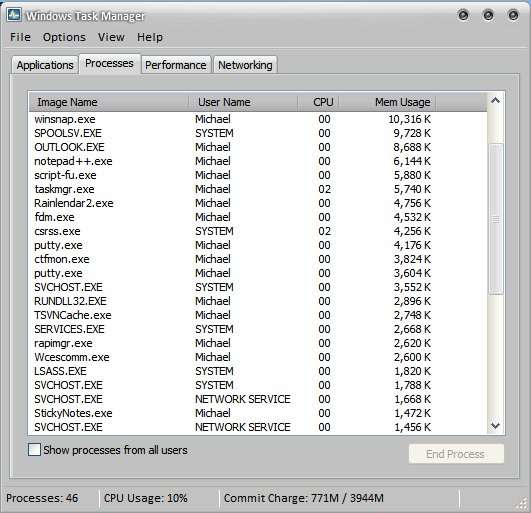
For example, the process called “taskmgr.exe” here (that is the Windows Task Manager) is currently using 2% of the CPU. Now click on the “CPU” column header to sort the processes (so that the process that uses the most CPU cycle will be on top). Find out the process that uses the most CPU usage (especially if it’s using a 99% of CPU). Note the name of the process (“blabla.exe” for example) and search for it in Google.
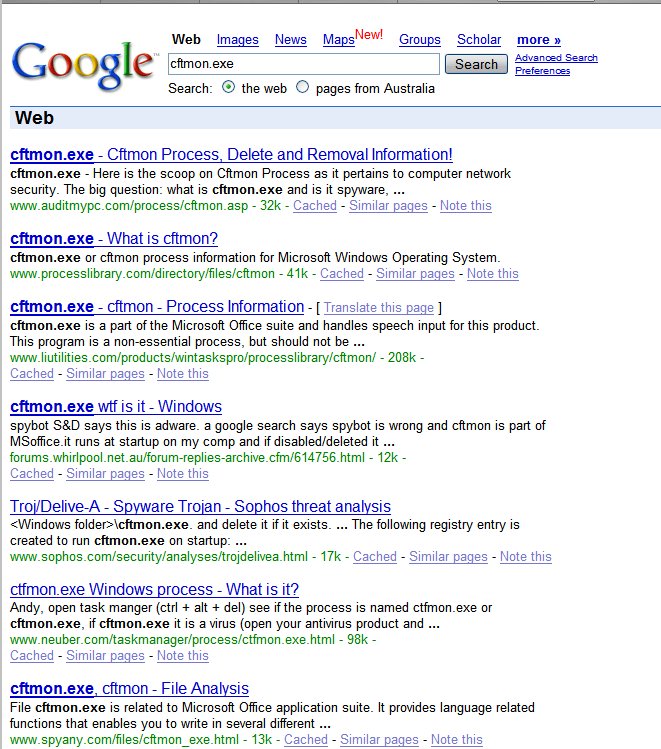
So if you want to know what cftmon.exe process is, type “cftmon.exe” in Google, and you will find these results (click on the screenshot on the left here). As you notice, most of the results are “hinting” that this process is a Microsoft Office process.
Most of the time, if you know that this process is “safe”, then there must be something else happening (either a spyware causing these “legitimate” processes to jump up and down, or sometimes a reinstallation of the application can fix the problem.
If, after searching in Google, you find that a process is a spyware process, then you must close the task first (sometimes it won’t let you though) before you can “clean” it up. To close it, click on the process, and press the “End Process” button. Now proceed below to clean up and making sure that the process doesn’t appear again.






Comments are closed.